Digital Picture Frame Gift Setup: How to Preload Photos
Prepare a digital photo frame without confusing Aura, Skylight, and Frameo gift workflows. Includes privacy checks, photo selection, and a copyable handoff card.

8 min read
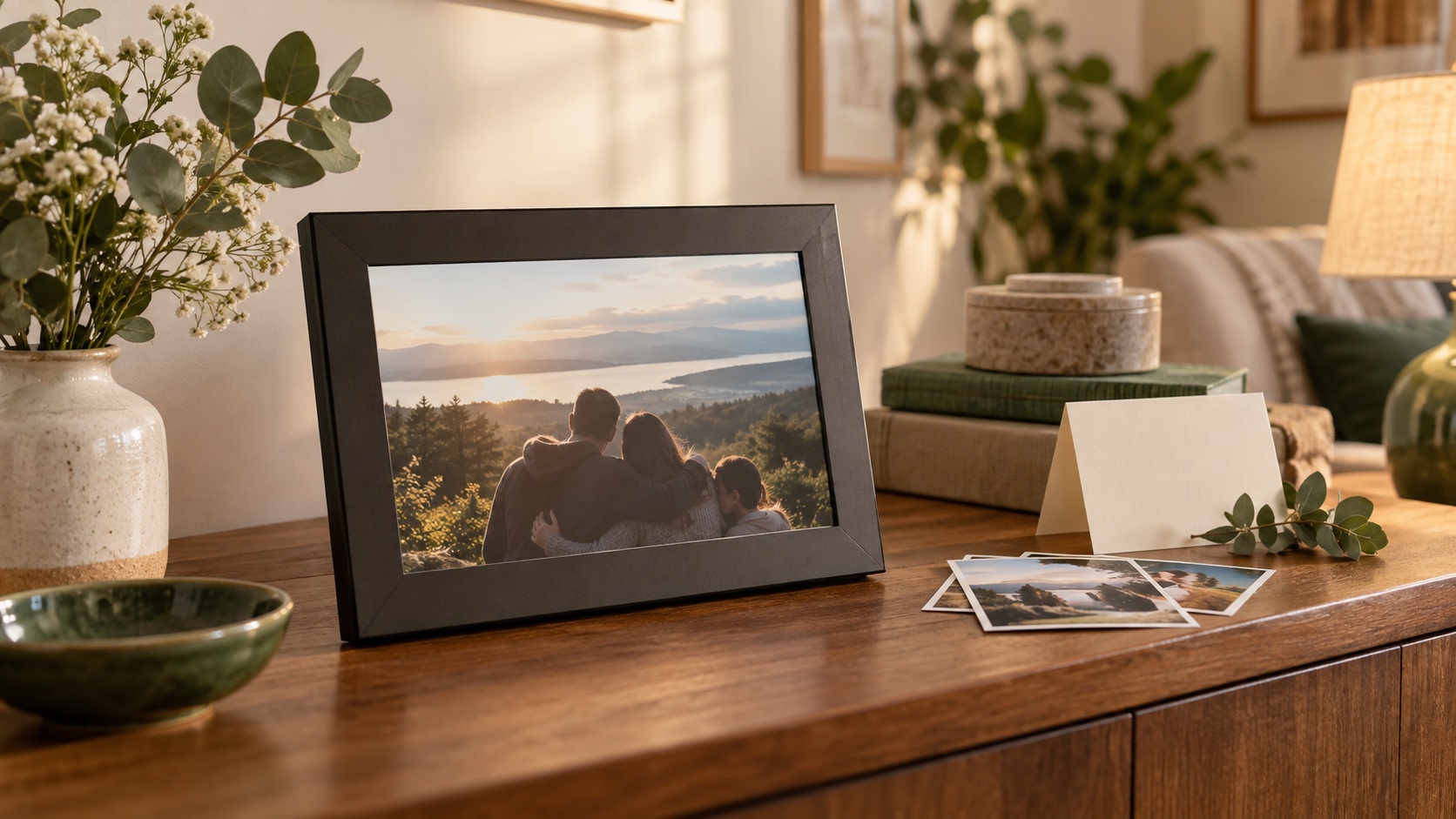
A digital picture frame becomes a personal gift when the first photographs are already chosen and the recipient knows what to do next. But “preload it before wrapping” is not one universal instruction. Aura, Skylight, and Frameo use different gift-preparation routes, and treating them as interchangeable can spoil the handoff.
This guide is for someone preparing a frame they have selected or already bought. It separates choosing photos, arranging delivery, activating the device, inviting contributors, and explaining the first day of use. It does not rank frame hardware or claim that every model is in stock.
Still choosing the platform? Read the Aura Walden vs. Frameo gift comparison before following these setup steps. Confirm the exact brand, model, and current support instructions; Frameo is software used by different frame manufacturers.
Choose the right preparation route before opening the box
| Platform | Gift preparation route | Important handoff distinction |
|---|---|---|
| Aura | Use its virtual gift-code or physical gift-QR route | Choose one route; do not casually power it on after gift preparation |
| Skylight Frame | Create a gift frame in the app and preload photographs | Give the recipient the activation code |
| Frameo | Set up the physical frame and transfer photographs before wrapping | Transferred photos remain on the frame; reconnect to the new Wi-Fi for online sending |
The differences above come from the official Aura gift guide, Skylight preloading instructions, and Frameo preparation instructions. They are platform workflows, not evidence that every similarly named device or bundle behaves identically.
First, make the gift ready as a collection of photographs
Before touching an app, make a small starting folder. Choose images the recipient will recognize and enjoy: people, places, pets, gatherings, or ordinary moments with a story. A carefully selected opening collection is easier to appreciate than an unedited upload of an entire phone library.
Our suggested starting point is about twenty photographs. That number is an editorial convenience, not a technical limit. Include a few recent images and a few older ones, avoid several almost-identical shots, and check faces near the edges. The recipient should not need to decipher who is hidden by a crop.
- Use original files when possible, not repeated screenshots of messages.
- Ask permission before sharing children’s images or anything private.
- Keep an independent copy of the selected originals; the gift display should not be the only family archive.
- Choose a neutral opening image that still feels right if the frame wakes up when guests are present.
Aura: use gift preparation, not an ordinary test setup
Aura documents two alternatives: a virtual gift code for remote preparation, or the physical gift QR code on the box. Pick one. The giver can arrange a greeting and photos before the recipient connects the frame at home; do not mix both methods for the same gift.
For a remotely shipped gift, follow the Aura app’s gifting route and keep the generated code for the recipient. With the box in hand, follow the gift-QR instructions instead. Do not invite the recipient early if it would reveal the surprise.
When the recipient will not use a smart device, consult Aura’s separate guidance for use without a phone or tablet. An on-site helper or a supported preparation route may be needed. Do not replace that process by permanently setting everything up under an unrelated family member’s account.
Skylight: prepare photos remotely and pass on the activation code
Skylight’s gift workflow does not require having the frame in front of you. In the app, add a Skylight Frame for someone else, name the recipient, create the frame’s email address, and complete the privacy choices. Upload the opening photos to that gift frame.
Keep the six-digit activation code with the gift instructions; the recipient uses it to connect the prepared content to their frame. Check that you are uploading to the correct frame when your app contains several devices. A successful upload to your own frame does not prepare the recipient’s gift.
Advanced features deserve a separate decision. Skylight lists videos, captions, albums, and other tools as Frame Plus features. Do not promise that a video greeting or remote feature is included in every purchase. Frame Plus and subscriptions for other Skylight products should not be treated as interchangeable.
Frameo: preload the physical frame and keep the handoff simple
Frameo explicitly permits setup before gifting: configure the frame, send the selected photographs, turn it off, and wrap it. The saved photographs, friends, and settings remain. The recipient can connect to their home Wi-Fi for online additions; previously transferred photos can still be displayed without household Wi-Fi.
Show the recipient the introductory guide, because you have already gone through the first-use screens. Frameo’s support page explains how to relaunch it through Settings, Help, and Guide. This is different from Aura’s unopened gift-preparation warning; do not apply one platform’s instructions to another.
For card slots, USB transfer, storage capacity, screen orientation, and power accessories, use the hardware manufacturer’s instructions for the exact frame. A software name alone is not enough to select an adapter or promise a particular local-transfer method.
Set sharing permissions before inviting the whole family
Start with a small group of contributors who understand what should appear. Agree on basic boundaries: ask before sharing an unflattering image, avoid sensitive documents, and do not send a photograph merely because it is technically possible to send it.
For Skylight, the linked-device settings distinguish who may send photographs and whether senders can see all photos or only their own. Review both choices. A frame email address should not be posted publicly when the owner expects a private family display.
For any platform, name one person who will answer setup questions and one backup helper. Do not leave the recipient with five enthusiastic contributors but nobody responsible for troubleshooting. Write contact details privately on the handoff card, not in a public gift guide or shared wishlist.
Check photographs without making unsupported feature promises
Review the collection on the device only when that platform’s preparation method permits it. Otherwise preview the selected files in the supported app and leave activation for the recipient. Check rotation, duplicated shots, and whether a face is too close to the edge.
Skylight’s file-support article separates ordinary image formats from video support tied to Frame Plus. That distinction can explain why a photograph works while a short clip does not. Check the exact file and service requirements rather than repeatedly resending the same unsupported attachment.
Do not increase image processing or upload personal documents simply to make a slideshow look more impressive. A readable, recognizable family picture is the goal. Keep the recipient’s permission and ability to remove unwanted photographs central to the gift.
Copy this digital-frame handoff card
| Card field | What the giver should complete |
|---|---|
| Your frame | Brand and exact model |
| First step | The single action the recipient takes to begin |
| Activation | Gift code or where the official instructions are kept, shared privately |
| New photos | Who can contribute and how the owner can control access |
| Help | A family helper and a convenient way to contact them |
| Plan details | Any subscription chosen, its payer, and what happens at renewal |
| Originals | Where independent copies are stored |
| Permission | You may remove photos or change the display at any time |
Keep the card short enough to use while standing beside the frame. Do not put a Wi-Fi password, full account password, or unnecessary personal details on a card that may be visible to visitors. Help the recipient enter credentials through the intended setup process.
For long-distance gifting, plan the first ten minutes
A remote gift needs an activation plan, not just a delivery confirmation. Ask whether somebody will be present to help, whether there is a suitable outlet and display surface, and whether the recipient wants a photo frame at all. A surprise device can still be an unwanted responsibility.
Agree on a short call after arrival instead of expecting an older relative to troubleshoot alone. The helper should follow the recipient’s screen and ask permission before making changes. Leave the owner in control of the frame and explain how future photos will arrive.
Avoid these five gifting mistakes
- Assuming that preloading, claiming, and activating mean the same thing across brands.
- Confusing a manufacturer’s gift-preparation option with a guarantee of offline or subscription-free operation.
- Uploading a whole camera roll before checking privacy and relevance.
- Buying a different hardware bundle because the software logo looks familiar.
- Treating a frame as a complete photo backup without an independent archive plan.
How We Put This Guide Together
The technical sections use the manufacturers’ gift-setup and support documentation. The photograph-selection method and handoff card are our editorial recommendations. We did not test the frames physically, activate accounts, or verify live retailer stock.
Frequently Asked Questions
Can I preload a digital picture frame before giving it as a gift?
Often, but the method depends on the platform. Aura and Skylight offer gift-preparation workflows; Frameo documents physically setting up and loading the frame before wrapping it.
Should I turn on an Aura frame to check my gift photos?
Do not improvise that step after gift preparation. Aura warns that powering it on can claim the gift; follow the chosen gifting instructions.
Can I preload Skylight without having the frame?
Yes. Its official gift setup uses the app, a gift frame, uploaded photographs, and an activation code for the recipient.
Will a preloaded Frameo frame work without Wi-Fi?
Frameo says previously transferred photos remain available without household Wi-Fi. An online connection is needed for the normal ongoing photo-sending experience.
How many photos should I start with?
A small edited selection is enough. We suggest roughly twenty as a practical starting point, not a device limit or manufacturer requirement.
Does a frame subscription come with every gift?
Do not assume so. Confirm the exact product and plan. Skylight’s support documentation lists several advanced features under Frame Plus.
Should I put account passwords in the gift box?
Avoid leaving passwords on an exposed handoff card. Use the supported gift code or setup route and share sensitive information only through an appropriate private method.
Sources and Updates
Official support articles were consulted on September 27, 2026. Menus, gifting procedures, and subscription features can change; confirm the current instructions for the exact platform. No purchase or live-stock claim is made in this setup guide.
- Aura gifting overview
- Aura without a smart device
- Skylight Frame gifting
- Skylight sharing permissions
- Skylight Frame Plus
- Skylight file support
- Frameo setup before gifting
- September 27, 2026Initial editorial version prepared. Product identities, workflow differences, source limitations, and internal-link roles documented; no hands-on testing claimed.
About the author
Maya Carter
Maya covers everyday tech and thoughtful gift ideas for FaveSift. The guides focus on product features, recipient fit, and practical tradeoffs to check before buying.